
Your WiFi name and password control how devices find and connect to your wireless network.
If your router uses 192.168.0.1 as its management address, you may be able to change both settings through its admin dashboard.
This is useful when you’ve recently installed a router, want a more recognizable network name, or need to replace a password shared with too many people.
What You Need Before Starting
Make sure you have access to the router’s administration interface. You’ll usually need:
- A phone or computer connected to the router
- The correct router management address
- The current admin login password
- A new WiFi name and password
If possible, use Ethernet when changing wireless settings. Your WiFi connection may temporarily disappear after saving the changes.
Step 1: Login to Your Router
Open your browser and enter http://192.168.0.1
This works when your router is configured to use that address. If the login page doesn’t open, check how to find your router IP address.
Enter the current admin credentials to access the dashboard. The full process is on our 192.168.0.1 router admin login page.
Step 2: Find the WiFi Settings
Different manufacturers use different names for wireless configuration. Look for sections labeled:
- Wireless
- WiFi Settings
- Wireless Network
- Network Settings
- WLAN
Some routers place these options on the homepage, while others keep them under an Advanced or Basic settings menu. Avoid changing unrelated WAN or LAN settings.
Step 3: Change Your WiFi Name
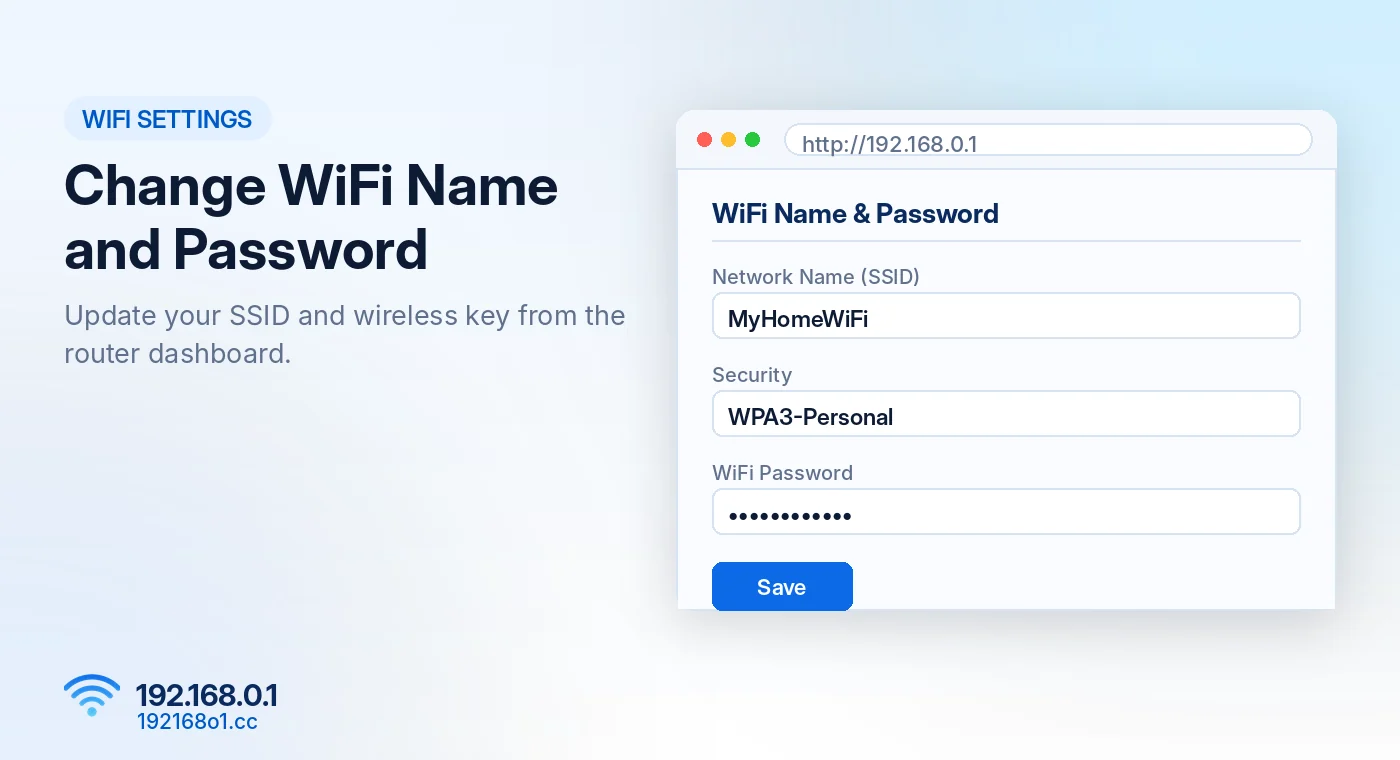
Find the field labeled SSID or Network Name. The SSID is the name your phone displays when searching for nearby WiFi networks.
Enter a new name that is easy for you to recognize.
For privacy, avoid including your full name, address, or other personal information in the network name.
Save the change when you’re ready.
Step 4: Change Your WiFi Password
Open Wireless Security or the password settings section.
Find the field labeled WiFi Password, Password, Network Key, or Pre-Shared Key. Enter a long, unique password.
A passphrase of several unrelated words can be easier to remember than a short, complicated-looking password. Avoid names, birthdays, or simple patterns such as consecutive numbers.
Choose Suitable Wireless Security
Use WPA3-Personal if your router and connected devices support it.
WPA2-Personal with AES encryption remains an appropriate option for many older devices. Avoid outdated security methods such as WEP.
Some routers provide a mixed WPA2/WPA3 mode for compatibility, but available options differ by model.
Step 5: Save and Reconnect
Select Save or Apply. The router may briefly restart its wireless network.
If your computer or phone disconnects, find the updated WiFi network name and connect using the new password.
Any devices still remembering the previous credentials will need to be updated.
Changing 2.4 GHz and 5 GHz WiFi Settings
Many modern routers support multiple wireless bands.
Some broadcast a single network name across both bands, while others allow separate names and passwords. For example:
- HomeNetwork for 2.4 GHz
- HomeNetwork-5G for 5 GHz
The 2.4 GHz band generally provides broader coverage, while 5 GHz can offer higher speeds over shorter distances in suitable conditions.
Check whether your router uses band steering or separate wireless profiles before changing settings. Tenda owners can follow our dedicated Tenda WiFi password change guide.
How to Change the Router Admin Password
The admin password is separate from your WiFi password on many routers.
Look for options such as Administration, System, Management, or Login Password. Enter your current admin password where required and create a new one.
Keep it secure. Anyone with administrative access may be able to change important network settings.
For login details, see our 192.168.0.1 username and password guide.
WiFi Password Changed but Devices Won’t Connect?
Forget the Old Network
Your phone may still be trying to use saved credentials. Choose Forget Network and connect again with the new password.
Check Capital Letters and Symbols
Wireless passwords are normally case-sensitive. Make sure you enter the exact password saved on the router.
Check the Security Mode
Some older devices cannot connect to networks configured exclusively for WPA3. Review your router’s compatibility options without unnecessarily weakening security.
Restart the Device
If the credentials are correct but a device remains stuck, reconnect its WiFi adapter or restart that device.
Frequently Asked Questions
Can I change my WiFi password from a phone?
Yes. A phone connected to the router can generally access its supported browser-based management interface.
Will changing my WiFi name affect connected devices?
Yes. Devices may treat it as a new network and require reconnection.
Does changing WiFi password improve security?
A strong, unique password helps protect wireless access, particularly when the previous password was widely shared.
Do I need to factory reset the router?
No. If you can log in, changing wireless settings normally does not require a factory reset.
Final Words
Changing your WiFi name and password through 192.168.0.1 can help you manage wireless access and improve your network’s security.
Use the correct management address, update the wireless settings carefully, and reconnect your devices afterward. Keep the new credentials secure and review your router’s firmware and guest network settings when appropriate.