
Changing your Tenda WiFi password can help you control who connects to your network. It’s also useful when you’ve shared your old password too widely or want a stronger wireless security key.
Many Tenda models allow you to make this change through 192.168.0.1 or tendawifi.com, although their exact menus differ. Before starting, make sure you know the router’s admin login password.
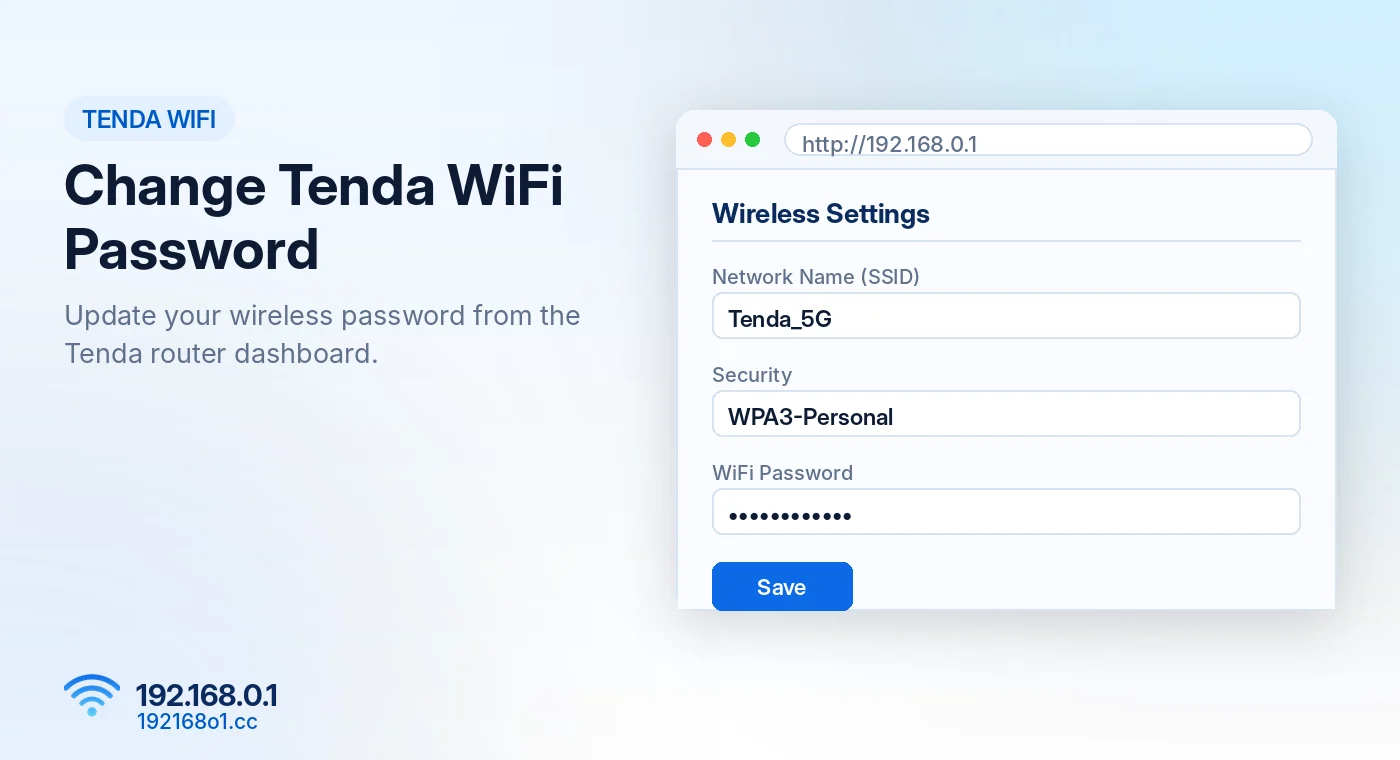
Before Changing Your Tenda WiFi Password
Connect your phone or computer to the Tenda network.
If possible, use a computer connected through Ethernet. A WiFi connection may disconnect as soon as the new password is saved.
Remember that changing the wireless password is different from changing the password used to administer the router. Our username and password guide explains the difference.
Step 1: Login to the Tenda Router
Open a web browser and enter http://192.168.0.1
On supported models, you can also try tendawifi.com.
If neither address works, check the default gateway instead of repeatedly refreshing the page. Enter the configured login password when prompted.
For login problems, read our Tenda Router Login Guide.
Step 2: Open Wireless Settings
Once inside the router dashboard, locate the wireless configuration section. Depending on the model, it might be called:
- WiFi Settings
- Wireless Settings
- Wireless Security
- WiFi Name and Password
Don’t worry if your screen doesn’t exactly match another Tenda router. Different firmware versions organize the menus differently.
Step 3: Enter a New WiFi Password
Find the current wireless password field. Replace the previous password with a strong, unique one.
A good password should be long and difficult to guess. Avoid using your phone number, address, or a familiar name.
If your router supports WPA3-Personal, consider using it with compatible devices. Otherwise, WPA2-AES is a commonly supported secure option. Avoid obsolete options such as WEP.
Step 4: Save Your Settings
Select Save, Apply, or the equivalent option. Your router may briefly restart its wireless connection.
Devices connected with the previous password will normally be disconnected. This is expected behavior.
Step 5: Reconnect Your Devices
Open WiFi settings on your phone or laptop. Select your Tenda network and enter the new password.
Repeat this for your other devices, including smart televisions, cameras, printers, and home automation equipment.
If a device keeps trying the old password, forget the saved WiFi network and connect again.
Changing Passwords on Dual-Band Tenda Routers
Some Tenda routers broadcast separate 2.4 GHz and 5 GHz networks.
Depending on the firmware, these networks may use one shared password or separate credentials.
If separate settings are available, decide whether both bands should use the same password. Check your configuration before saving so you don’t accidentally leave one network using an old password.
Tenda WiFi Password Change Not Saving?
The Admin Session Expired
Some routers automatically sign out after inactivity. Log in again and repeat the change.
The Router Reconnected Using the Old Details
Your phone may still remember the previous password. Forget the network, scan again, and enter the updated key.
The Login Page Won’t Open
Verify that you’re connected to the Tenda router and using its correct gateway address. See 192.168.0.1 Not Working for connection checks, or learn how to find your router IP address.
You Forgot the Admin Password
Check whether your device supports password recovery. A factory reset may be required if recovery isn’t available, but it should not be the first step. Read our 192.168.0.1 password recovery guide first.
Frequently Asked Questions
Can I change my Tenda password using a phone?
Yes. Connect your phone to the router and use its supported web management page.
Does changing the WiFi password change the admin password?
Not normally. They are separate settings on many models.
Will devices disconnect after the password change?
Usually yes. Devices must reconnect using the new wireless password.
Do I need to reset my Tenda router?
No. If you can access the management interface, changing the WiFi password generally doesn’t require a factory reset.
Final Words
Changing a Tenda WiFi password is a simple configuration task when you have access to the router dashboard.
Open the correct management address, update the wireless password, save your settings, and reconnect your devices. Keep the new password in a secure place so you don’t need to reset the network later. The same steps for other brands are covered in our WiFi name and password change guide.