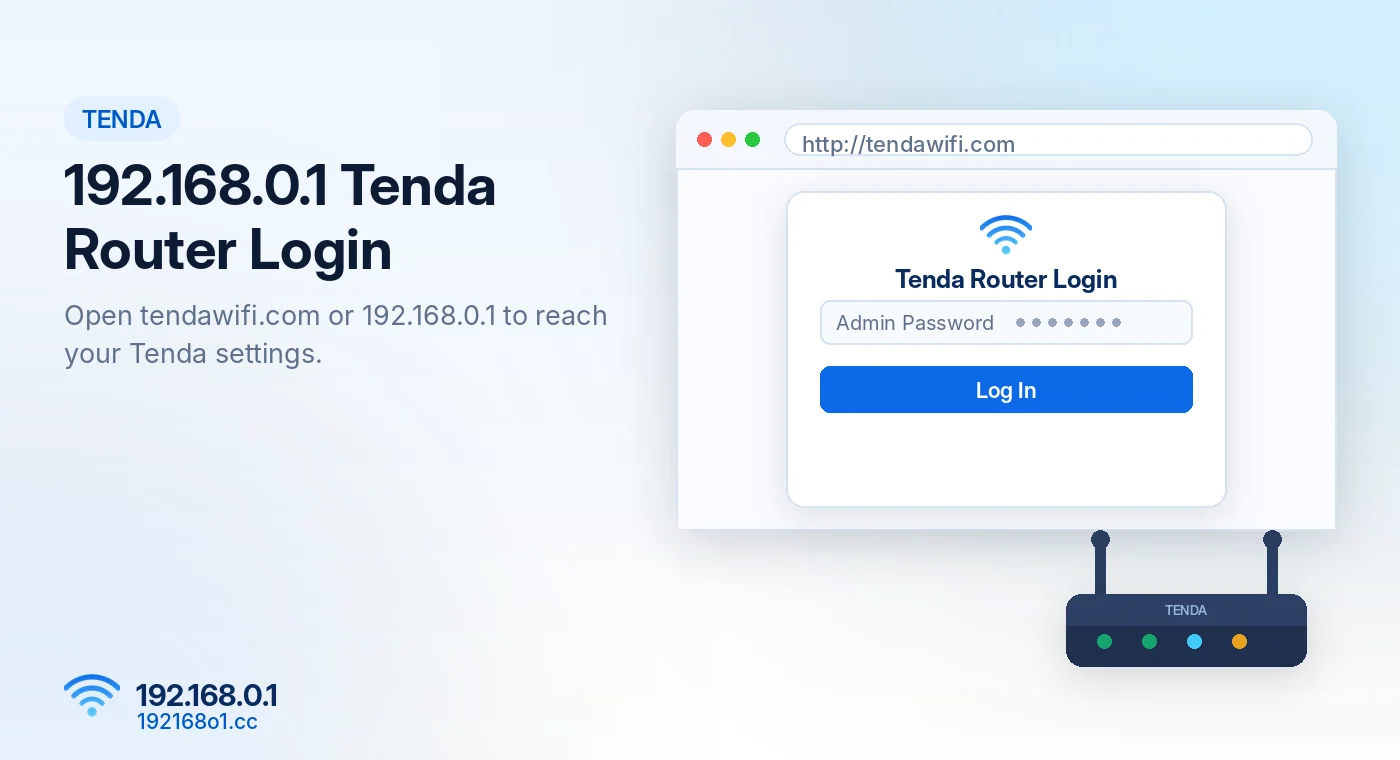
Many Tenda routers provide a browser-based settings page that you can open through 192.168.0.1 or tendawifi.com.
This management page is used for tasks such as changing your WiFi name, updating the wireless password, reviewing connected devices, and configuring network options. The exact login address and password depend on your Tenda model.
How to Login to a Tenda Router
Step 1: Connect to the Tenda Network
Connect your computer or phone to the Tenda router using WiFi. You can also connect a computer directly through an Ethernet cable if the model has available LAN ports.
Check that you’re connected to the Tenda network, not a different nearby WiFi connection.
Step 2: Open the Tenda Login Address
Open your browser and enter http://192.168.0.1
If that doesn’t load and your router supports it, try tendawifi.com.
Type the address into the browser’s address bar rather than searching for it on Google.
Step 3: Enter the Login Password
The router may ask for a management password, a WiFi password, or other credentials depending on its model and firmware.
Some Tenda devices use a password provided on the router label. Others use the password created during initial configuration. Use the login instructions for your specific device.
Step 4: Open the Management Dashboard
After logging in, you should see a page containing available settings. Common sections include Internet Settings, Wireless Settings, System Settings, and connected-device information. The names and arrangement may differ.
Tenda Login Password Not Working?
First, check whether the password field expects the router’s admin password or its wireless password. Typing the WiFi password into a separate admin login field won’t always work.
If someone installed the router for you, ask whether they created a custom login password.
Avoid resetting the router until you’ve checked the device label and supported recovery options. You can also read our router username and password guide.
192.168.o.1 Tenda Login – Common Typing Error
Searching for 192.168.o.1 Tenda is common because the letter O resembles zero. The correct numeric address is 192.168.0.1
You may also see searches such as 192.168 o 1 or 192.168-o-1. These are not properly formatted IPv4 addresses. Our guide to 192.168.o.1 login mistakes lists the ones people make most often.
Use the correct address or the supported Tenda management domain.
How to Change Tenda WiFi Settings
Change Your Network Name
After signing in, locate the WiFi or Wireless Settings menu. Find the SSID field and enter your preferred wireless network name.
Save the change. Your connected devices may need to select the renamed network again.
Change Your WiFi Password
Find the WiFi Password or Wireless Security option. Enter a new, strong password and save it. Your existing wireless connections may disconnect after the update.
For complete instructions, read How to Change Your Tenda WiFi Password.
Check Connected Devices
Some Tenda routers provide a device-management or client-list feature. It can help you identify phones, laptops, televisions, and other devices connected to your network.
Check carefully before blocking an unfamiliar entry, as some devices appear under generic names.
Tenda Router Login Page Not Opening
Check the Active Connection
Your device must be connected to the router or a network that can reach its management address. If you’re using a VPN, disconnect it temporarily and try again.
Check the Router’s Gateway
Some Tenda installations use a different local address. Find your current gateway in your device’s network settings and open that address instead. Our guide explains how to find your router IP address on every device.
Try Another Browser
A private browser window or a different browser may help if the page is affected by cached data or extensions.
Avoid a Factory Reset as the First Fix
A reset can remove internet connection details, wireless settings, and access controls. For more help, see 192.168.0.1 Not Working.
Frequently Asked Questions
What is the Tenda router login IP?
Many models support 192.168.0.1, but your configured gateway may be different.
Can I use tendawifi.com instead?
Yes, on supported Tenda devices while connected to the appropriate network.
Is the Tenda login password always admin?
No. Login requirements differ between models and configured settings.
Can I access Tenda settings on Android?
Yes. Connect to the router’s WiFi and open the supported management address in your browser. See our guide to opening 192.168.0.1 on Android and iPhone.
Final Words
Tenda router login is straightforward when you have the correct local address and configured password. Start with 192.168.0.1 or the management address documented for your model. If the page fails to load, verify your network connection and gateway before changing or resetting anything.