
You don’t need to guess whether your router uses 192.168.0.1, 192.168.1.1, or another IP address. Your computer or phone can often show the gateway address of the network you’re connected to.
This information is useful when you’re trying to open the router admin panel but the usual login address doesn’t work.
What Is a Router IP Address?
A router IP address identifies the router on a network.
On many home networks, the router acts as the default gateway. It provides a path for your devices to communicate with other networks, including the internet.
Common examples include:
- 192.168.0.1
- 192.168.1.1
- 192.168.8.1
- 10.0.0.1
The address may differ depending on the router manufacturer and how the network was configured. Our 192.168.0.1 vs 192.168.1.1 comparison explains the two most common ones.
How to Find Router IP on Windows 10 or 11
Windows provides a simple way to check the default gateway.
Step 1: Open Command Prompt
Press Windows + R. Type cmd and select OK. A Command Prompt window will open.
Step 2: Run the IP Configuration Command
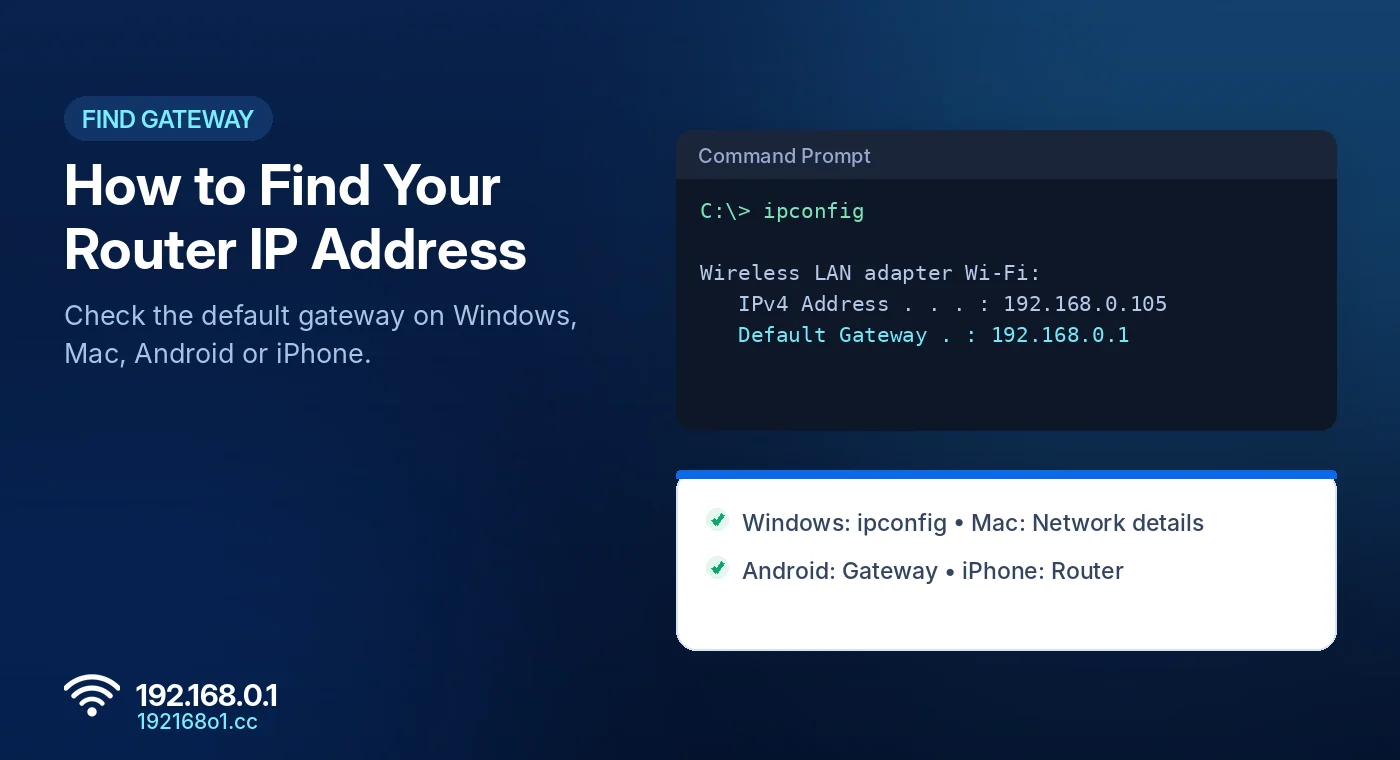
Enter ipconfig and press Enter. Windows will display information about your network adapters.
Step 3: Find the Default Gateway
Look for your active WiFi or Ethernet adapter. Find the line labeled Default Gateway.
For example: Default Gateway . . . : 192.168.0.1
This is the gateway address assigned to your active connection. If several adapters appear, ignore disconnected connections and check the one you’re actually using.
How to Find Router IP on macOS
Open Network Settings
Click the Apple menu and open System Settings. Select Network and choose your active WiFi or Ethernet connection.
Check TCP/IP Details
Open Details and select TCP/IP. Find the field labeled Router.
That address is the gateway associated with your connection. Menu names can vary slightly between macOS versions.
How to Find Router IP on Android
Android menus vary between Samsung, Pixel, Xiaomi, Oppo, and other manufacturers.
Open Your Connected WiFi Network
Go to Settings > WiFi or Network and Internet. Select the network you’re currently using.
Find Gateway Information
Look for options such as Network Details, Advanced, IP Settings, or Gateway. On supported Android versions, the router’s address appears beside Gateway.
Some phones don’t display this field in their basic WiFi details. If yours doesn’t, use the router label or another connected device to identify the gateway.
How to Find Router IP on iPhone or iPad
Apple devices usually make this information easy to locate.
- Open Settings.
- Select Wi-Fi.
- Tap the information icon beside your connected network.
- Find the Router field.
The displayed address is the router gateway used by that WiFi connection. You can enter it directly into Safari to check whether a management page is available. Our guide to accessing 192.168.0.1 on Android and iPhone covers the full mobile process.
What If the Default Gateway Is Missing?
First, confirm that your device is connected to the intended network.
On Windows, a disconnected adapter may show no gateway. Similarly, unusual static IP settings can leave the gateway field empty.
Try reconnecting to WiFi or checking your network configuration.
If your internet connection works but the router login page doesn’t open, the management interface may use a different address or restrict access. See 192.168.0.1 Not Working.
Is the Gateway Always the Router I Want?
Not necessarily.
A network may have several devices, including an ISP modem-router, a separate WiFi router, or a mesh access point.
The default gateway identifies where your current network sends traffic outside its local segment. A secondary access point may have a separate management address.
If you’re configuring a particular device, check its label or documentation.
Open the Router Login Page
Once you have the correct management address, type it into your browser.
For a router configured to use 192.168.0.1, open http://192.168.0.1 and enter the admin credentials assigned to that device. The complete walkthrough is on our 192.168.0.1 router admin login page, and credentials are covered in the username and password guide.
Frequently Asked Questions
Is my router IP the same as my public IP?
Usually not. Your router’s local address and the public IP used for internet communication serve different purposes.
Can I find the router IP without internet?
Yes. A working local network connection is generally enough.
Is the default gateway always 192.168.0.1?
No. It depends on the router and network configuration.
Why are multiple gateways listed?
Your device may have multiple active network adapters or connections. Check the one relevant to the router you’re managing.
Final Words
Finding your router’s IP address is more reliable than trying several random login addresses.
Check the default gateway on your connected device, confirm which router you want to manage, and open its correct administration address in your browser.