
The username and password for 192.168.0.1 depend on the router you’re using. Some older devices have factory login details, while newer models ask you to create an administrator password during setup.
If you’ve reached the login screen but don’t know what to enter, start by identifying your router model. Guessing passwords from random lists often wastes time. If the login page will not open at all, start with the 192.168.0.1 router admin login guide instead.
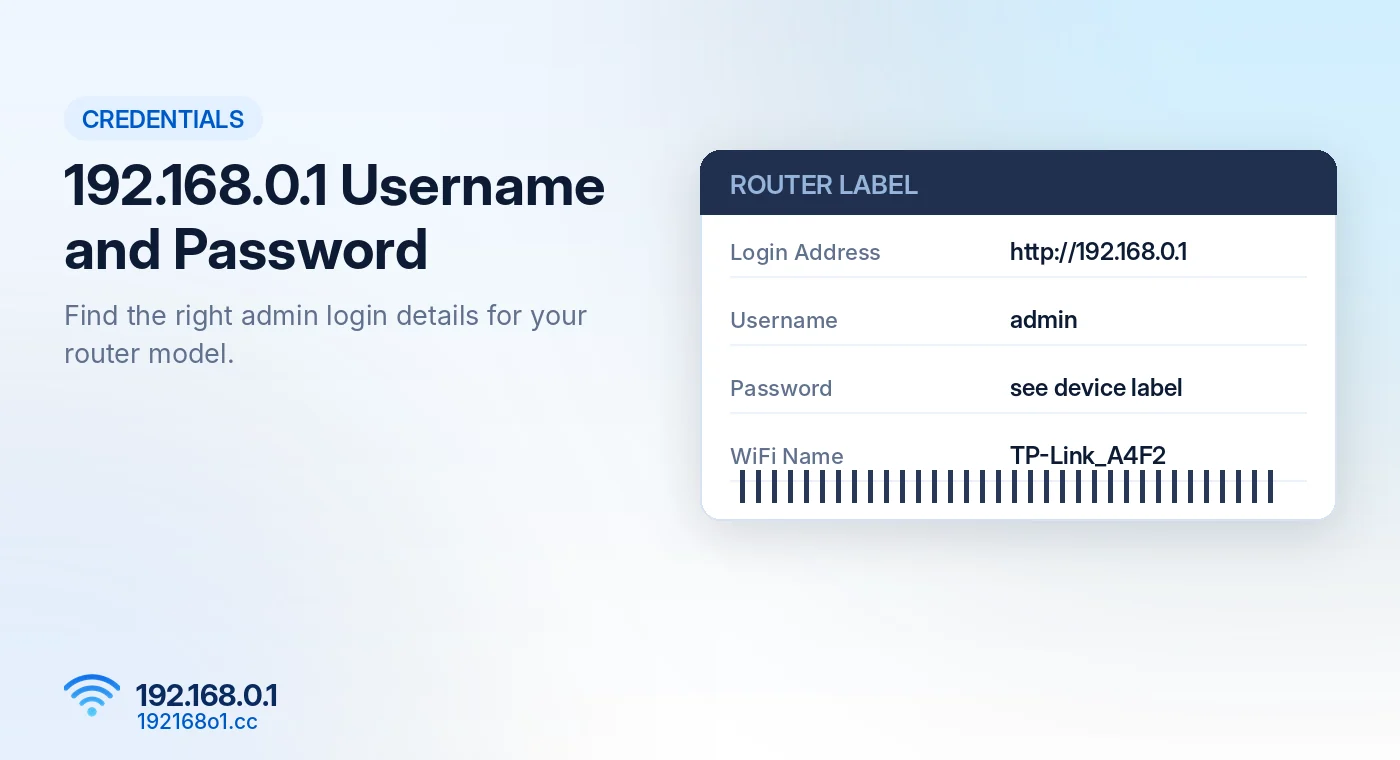
Common Router Login Credentials
Several manufacturers have used default username and password combinations on particular models.
| Router brand | Login details to check |
|---|---|
| TP-Link | Older models may use admin/admin; newer models generally use a configured password |
| Tenda | May use a configured admin password or model-specific login details |
| D-Link | Varies by model; check the label and manual |
| NETGEAR | Many supported models use admin as the username, with a configured password |
| Other routers | Manufacturer and firmware-dependent |
These are examples, not universal passwords. A router’s admin credentials may also have been changed by its owner or installer.
How to Find the Correct Admin Password
Check the Router Label
Inspect the underside or back of the router. Look for fields such as Login Address, Admin Password, Username, or Access Key.
Be careful with labels marked WiFi Key or Wireless Password. Those usually describe the password for joining the wireless network, not necessarily the router dashboard.
Check the Router’s Documentation
The router model number can help you identify the relevant instructions. Search the printed manual or the manufacturer documentation for the web management login procedure.
Some models use one password field rather than a traditional username and password combination. Brand specific steps are covered in our Tenda router login guide and TP-Link router login guide.
Check Previously Saved Credentials
If you’ve logged in before, your browser or password manager may contain the password. Make sure the saved entry belongs to your own router before using it.
Admin Password vs WiFi Password
The admin password protects router settings. The WiFi password controls who can join the wireless network.
For example, someone may know the WiFi password for your home network without having permission to modify its settings.
Changing your WiFi password generally does not reset the router’s admin password. These credentials should be kept separate when supported. If you only want to update the wireless key, follow our WiFi name and password change guide.
What If Admin/Admin Doesn’t Work?
Your Router May Use a Different Default
Not every manufacturer uses admin/admin. Some devices have unique printed credentials, while others require first-time password creation.
Someone May Have Changed the Password
If your router was installed by an internet provider or configured by another household member, the original credentials may no longer work.
The Login Page May Belong to Another Device
On networks with multiple routers or access points, you may be viewing the wrong administration page. Check your gateway address and the device branding before entering credentials. Our guide on how to find your router IP address explains how.
How to Recover a Forgotten Router Password
First, look for an available password recovery option on the router’s login screen. Some models support security questions, an associated account, or previously configured recovery settings.
If no supported recovery method is available, a factory reset may be necessary. However, it can erase your WiFi name, internet connection settings, and other custom configuration.
Read our router reset instructions before proceeding, and see the full 192.168.0.1 password recovery guide for the options worth trying first.
How to Open the Router Login Page
- Connect to your router’s WiFi or Ethernet network.
- Open a web browser.
- Visit http://192.168.0.1 if that is the configured gateway.
- Enter the correct admin credentials.
- Open the management dashboard.
If you see a connection error instead of a password field, visit our 192.168.0.1 troubleshooting page. If the page loads but rejects your password, read what to check when the admin page opens but login fails.
Frequently Asked Questions
Is the 192.168.0.1 password always admin?
No. Admin may be a username or an older default password on certain models. Many newer routers use individually configured passwords.
Can I see my router password on its label?
Sometimes. Labels may include factory management credentials, but a WiFi password should not automatically be treated as the admin password.
Can I change my admin password?
Yes, provided you can log in and your router supports password changes through its management interface.
Will changing the admin password disconnect my WiFi?
Normally it will not change the wireless password. Some management sessions may need to sign in again.
Final Words
There is no single password that unlocks every router using 192.168.0.1. Identify your model, check its documentation, and use the credentials configured for that device. Reserve a factory reset for situations where supported recovery options have been exhausted.