
TP-Link routers provide a local management page where you can configure wireless networks, review connected devices, update passwords, and adjust internet settings.
Many standard TP-Link WiFi routers use 192.168.0.1 or tplinkwifi.net for browser access. The correct address may differ with the model or network configuration.
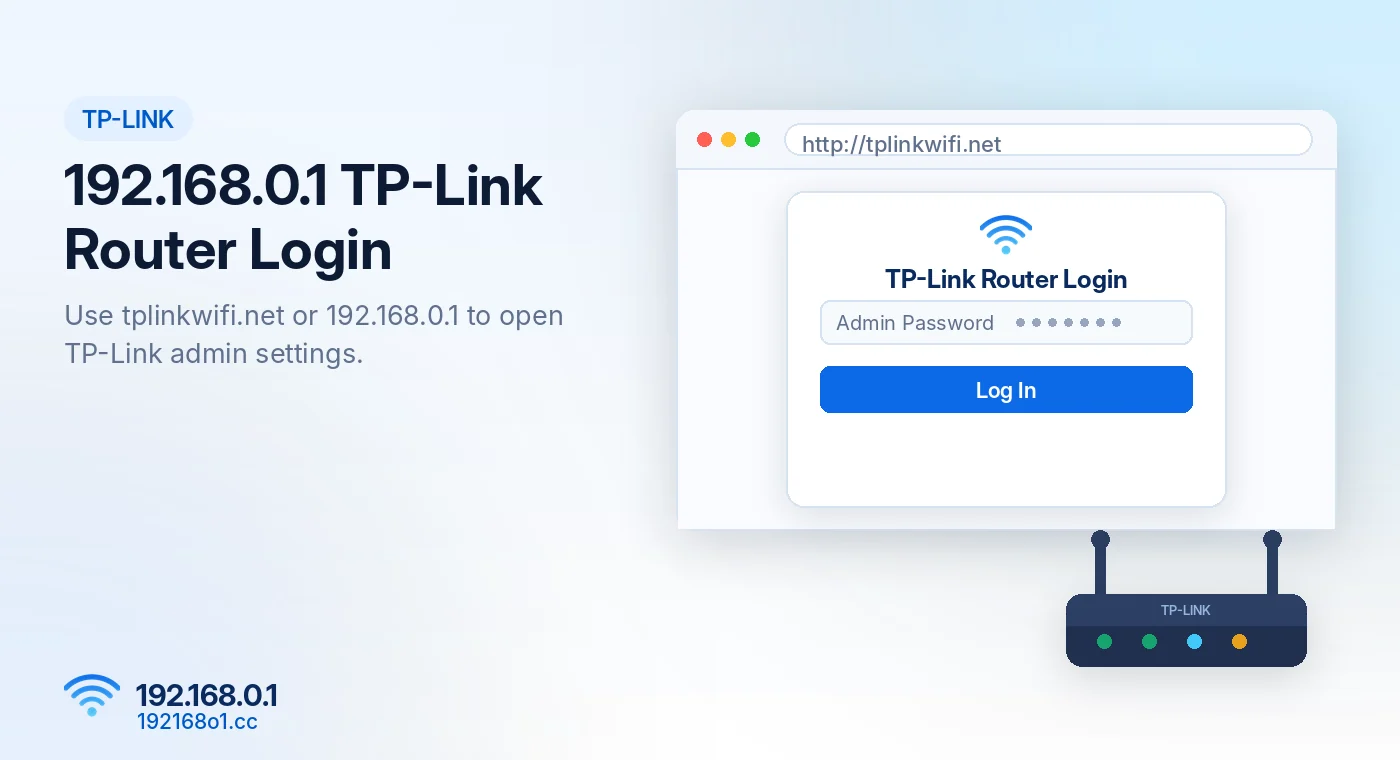
How to Login to a TP-Link Router
Step 1: Connect to the Router
Connect your phone or computer to your TP-Link WiFi network. If you have a computer and Ethernet cable, a wired connection is useful when changing wireless settings.
Step 2: Enter the Management Address
Open a browser and type http://192.168.0.1
Alternatively, supported routers may use tplinkwifi.net
Press Enter and check whether the TP-Link management page opens. Typing the letter O instead of zero is the most common reason the page never loads, as explained in our 192.168.0.1 router admin login guide.
Step 3: Enter Your Admin Password
The login screen depends on the router generation. Some older TP-Link models use admin as both the factory username and password.
Many newer TP-Link routers require a custom administration password during initial setup. If you already configured the router, enter the password you created.
Step 4: Open Router Settings
Once logged in, you’ll see the interface supported by your model. Depending on the firmware, the settings may be grouped under Basic, Advanced, Wireless, Network, or System.
TP-Link Admin Password vs WiFi Password
The router administration password and wireless password have different purposes.
Your WiFi password lets phones and computers join the wireless network. The admin password lets an authorized user change the router configuration.
Changing one does not necessarily modify the other. If you forgot the admin password, visit our router login credentials page.
How to Change Your TP-Link WiFi Password
Open Wireless Settings
After logging in, look for Wireless or WiFi Settings. On some interfaces, this appears under Basic > Wireless. Other models use different menus.
Enter a New Password
Find the password, wireless key, or network security field. Choose a unique password and keep the strongest supported security mode enabled, preferably WPA3-Personal or WPA2-AES.
Save and Reconnect
Save the new settings. Your phone or laptop may disconnect because it still remembers the previous password. Select your WiFi network again and enter the updated password.
For more detail, read How to Change Your WiFi Name and Password.
TP-Link Login Page Not Opening?
Check 192.168.0.1 vs 192.168.1.1
Not every TP-Link model or installation uses the same gateway. Check the router label or locate the gateway through your device’s network details. Our 192.168.0.1 vs 192.168.1.1 comparison explains the difference.
Try the Supported Local Domain
For many standard TP-Link routers, tplinkwifi.net is an alternative to the numeric IP address. The domain works locally when your connection and router settings support it.
Check VPN and Browser Settings
Temporarily disconnect any VPN that is preventing access to local addresses. Try another browser or a private window if the login page appears broken.
Check for a Browser Privacy Warning
Some router interfaces use local HTTPS certificates that browsers don’t recognize automatically. Verify the device and expected address before proceeding. Don’t ignore warnings on unfamiliar pages.
If nothing loads at all, work through our 192.168.0.1 not working checklist or learn how to find your router IP address.
Can I Use TP-Link Tether Instead?
The TP-Link Tether app supports management and setup for compatible devices. It can be convenient for tasks such as changing wireless settings or viewing connected clients. App support and available functions depend on the router model.
Frequently Asked Questions
Does every TP-Link router use 192.168.0.1?
No. Some use 192.168.1.1 or another configured address.
Can I login without internet?
Yes, the local interface can generally be accessed while connected directly to the router.
Is admin/admin the default password?
That combination applies to certain older models, not all TP-Link devices.
What if tplinkwifi.net doesn’t work?
Try the device’s actual gateway IP and verify your connection.
Final Words
Accessing your TP-Link router starts with identifying the correct management address and admin password. Use 192.168.0.1 or tplinkwifi.net where supported. If the page won’t open, check your gateway before assuming there is a router fault.