
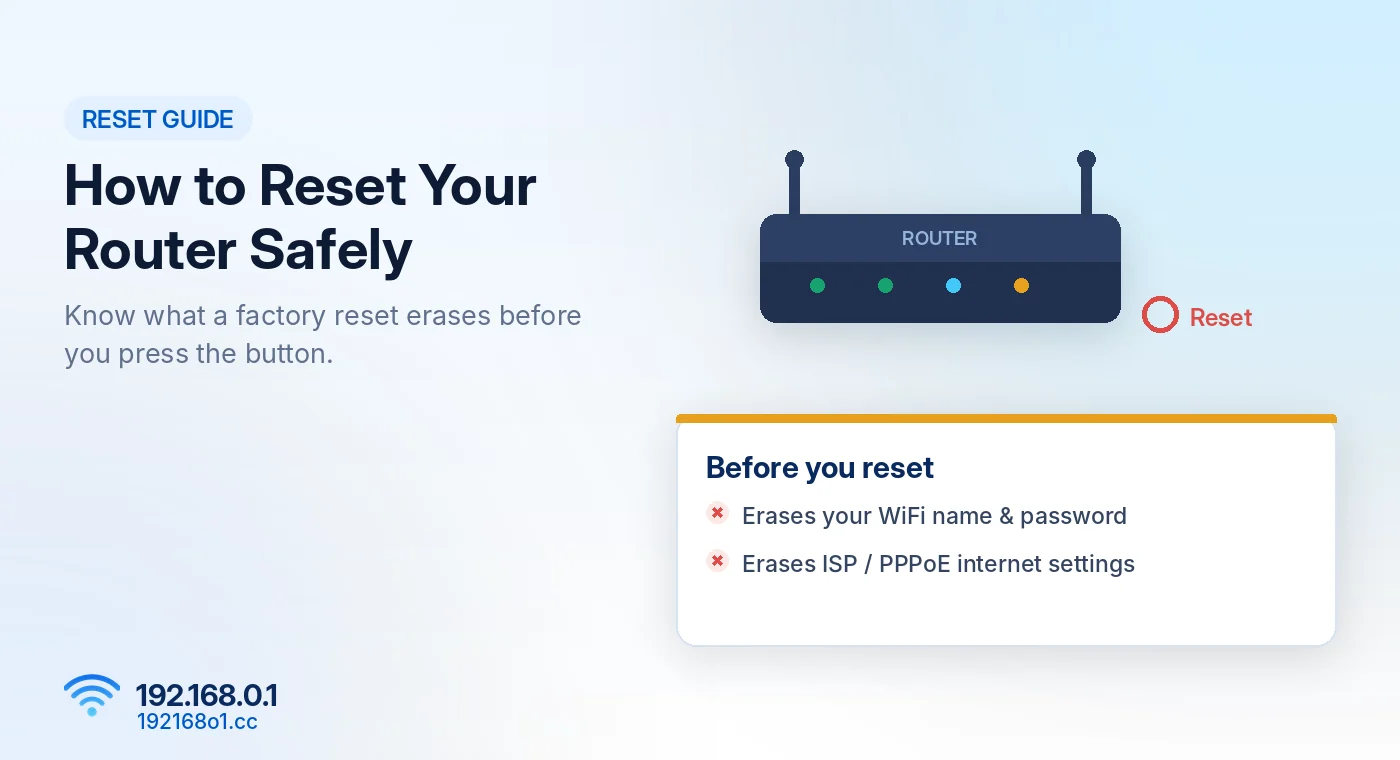
A router restart and a factory reset are two very different actions.
Restarting can help clear temporary connection problems. A factory reset removes saved configuration and returns the router to its factory settings.
If 192.168.0.1 isn’t opening, you should try ordinary troubleshooting before using the Reset button.
Restart vs Factory Reset
| Restart | Factory reset |
|---|---|
| Reboots the router | Restores factory configuration |
| Usually keeps your settings | Removes customized settings |
| May fix temporary problems | May solve certain persistent configuration issues |
| Normally requires little setup | May require complete setup again |
Choosing the wrong option can leave your household without a working internet connection until the router is configured again.
When Should You Restart Your Router?
A restart may help when:
- The wireless connection becomes unresponsive
- The admin page temporarily stops loading
- Some connected devices lose network access
- The router behaves unusually after running for a long period
However, restarting does not fix every fault. If the problem comes from your internet provider, damaged cables, or incorrect settings, a reboot may not solve it.
How to Restart Your Router
Step 1: Check Your Connections
Look at the router’s power indicator and Ethernet cables. Make sure the router is powered on and connected correctly.
Step 2: Restart Using the Dashboard
If you can access the administration interface, look for Restart or Reboot under System or Maintenance. Use that option if available. Our 192.168.0.1 login guide explains how to open the dashboard.
Step 3: Restart Using Power
If you cannot access the dashboard, switch the router off using its power button, if provided.
Otherwise, disconnect the power, wait briefly, and reconnect it. Allow the device to finish starting before testing your connection again.
When Is a Factory Reset Necessary?
A factory reset may be appropriate when you’ve forgotten the admin password and the router offers no usable recovery option.
It may also help after certain configuration mistakes or when preparing a router for a new owner.
Don’t reset a router simply because you mistyped 192.168.0.1. Check the gateway address and browser first, and read our 192.168.0.1 password recovery guide before you decide.
What to Check Before Factory Resetting
Record Your Internet Settings
Some internet providers require particular WAN configuration details, PPPoE credentials, VLAN settings, or other parameters.
If your router uses these and you don’t have the necessary information, resetting it could interrupt your internet access until your provider helps restore the configuration.
Save Your WiFi Details
Write down your current WiFi name and password if you intend to reuse them. Also record guest network settings and other important preferences.
Back Up the Router Configuration
Some routers offer a configuration backup feature in the administration dashboard. Use it if available and appropriate. Keep the backup file secure because it may contain sensitive network information.
Confirm the Correct Reset Procedure
The Reset button location and required press duration differ between router models. Check the instructions for the exact model rather than relying on a universal number of seconds.
How to Factory Reset a Router
- Make sure the router is powered on.
- Locate the Reset button or recessed reset hole.
- Follow the manufacturer’s instructions for your exact router model.
- Release the button when the documented reset indication occurs.
- Allow the router to reboot fully.
- Reconnect using its factory network settings.
- Complete the initial configuration again.
Don’t interrupt the router while it is restoring settings.
What Happens After a Factory Reset?
Your router may return to its original WiFi name and password, or it may require a new wireless network to be configured.
You may also need to recreate:
- Admin login password
- Internet connection settings
- Guest WiFi network
- Parental controls
- Port forwarding rules
- Reserved IP addresses
Some internet-provider-supplied devices have special configurations or automated provisioning. Contact your provider if you cannot restore the connection.
Router Login After Reset
Check the label or official instructions for the device’s factory management address.
If the router uses 192.168.0.1, connect to it and open http://192.168.0.1
Follow the initial setup process, including creating a strong admin password. For credential details, visit 192.168.0.1 Username and Password. You will also need to set your wireless key again, which our WiFi name and password guide covers.
Frequently Asked Questions
Will restarting delete my WiFi password?
Normally no. A regular restart preserves configuration.
Does factory reset remove my custom password?
Yes, factory resetting generally clears customized login and wireless settings.
Is a factory reset guaranteed to fix internet problems?
No. It won’t repair hardware faults or internet-provider outages.
Should I press Reset if 192.168.0.1 doesn’t open?
Only after checking the address, local connection, login credentials, and supported recovery options.
Final Words
A restart is suitable for many temporary problems, while a factory reset is a much more disruptive action.
Before resetting, protect any information you’ll need for setup. If your only problem is accessing the admin page, start with our router login troubleshooting guide.