How to Recover 192.168.0.1 Router Password Without Losing Settings
You open 192.168.0.1, enter what you believe is your router password, and receive an incorrect password message. You try another familiar password, but that doesn’t work either.
If you’re still connected to WiFi, the situation can be confusing. Your internet works, yet you can’t access the router dashboard.
The first thing to understand is that recovering a router admin password and recovering a WiFi password are two different tasks. The available solutions also depend on your router’s brand, model, and previously configured recovery options.
Some routers let you reset the administration password without removing network settings. Others require a factory reset if the password is permanently lost. Before pressing the Reset button, check the following options.
First, Identify Which Router Password You Forgot
A home router may use several different passwords.
| Password type | Purpose |
|---|---|
| Router admin password | Opens the router settings page |
| WiFi password | Connects devices to the wireless network |
| Internet connection password | May authenticate your connection with the internet provider |
| Manufacturer cloud account password | Signs in to a linked management account, where supported |
These passwords don’t necessarily match.
Forgot Your WiFi Password?
If your phone is connected to WiFi but another device cannot join, you may have forgotten your wireless password rather than the router admin password.
Depending on the operating system and your access permissions, a device that already knows the WiFi password may let you view or share it.
Alternatively, you can sign in to the router dashboard and change the WiFi password. Read our WiFi password change instructions for the usual process.
Forgot the Router Admin Password?
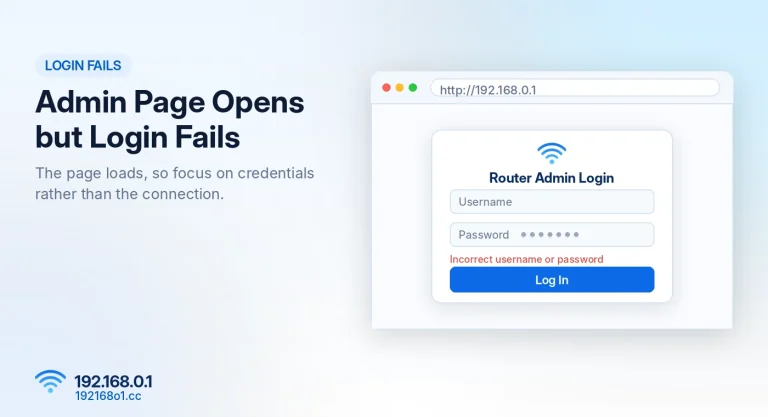
If the login screen appears at 192.168.0.1 but rejects your credentials, you’re dealing with an administration login problem.
The admin password protects settings such as wireless configuration, connected-device controls, and network management.
Start with the recovery checks below rather than resetting the entire router.
Step 1: Confirm You’re Opening the Correct Router
Before investigating passwords, make sure the login page belongs to the router you want to manage.
Open the Correct Address
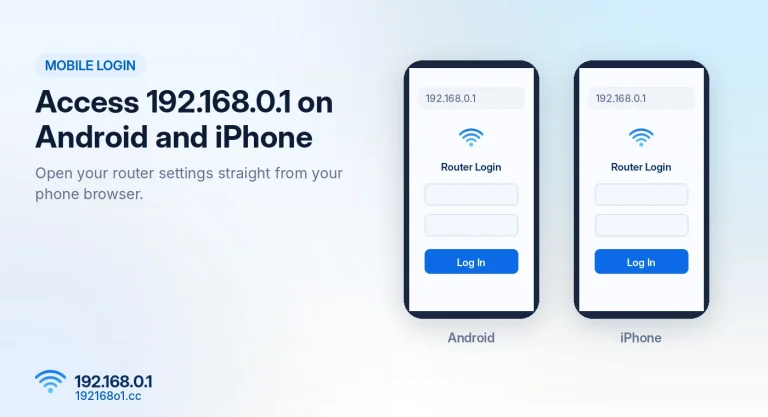
Connect to your router through WiFi or Ethernet. Open your browser and type http://192.168.0.1
If your router supports another management address, use the one documented for your model. For example, certain TP-Link routers support tplinkwifi.net, while some Tenda models support tendawifi.com.
An unfamiliar router login screen could indicate that you’re connected to a different network device.
Check the Default Gateway
On Windows, open Command Prompt and run ipconfig. Find the Default Gateway for your active connection.
On an iPhone, open Settings > Wi-Fi, select the connected network, and check the Router field.
Your router may use 192.168.1.1 rather than 192.168.0.1. For instructions covering different devices, visit How to Find Your Router IP Address.
Step 2: Check Whether the Router Still Uses Factory Credentials
Some older routers use factory-defined usernames and passwords. For example, certain older TP-Link models used admin for both fields.
However, this combination is not universal. Many modern routers require the owner to create a password during initial setup.
Look at the Router Label
Check the underside or back of the router. You may find its model number, management address, default WiFi credentials, or factory login information.
Don’t confuse the wireless security key with the administration password.
If the router was configured by your internet provider, the installed credentials may differ from the factory defaults.
Check the Correct Manual
Look for the model and hardware version printed on the router. A manufacturer may use different login systems across products, even within the same series.
Use the instructions for your exact model rather than assuming that a password listed for another router will work. See our 192.168.0.1 Username and Password page for additional information.
Step 3: Look for a Saved Admin Password
If you’ve accessed the router dashboard before, your browser or password manager might already have the login details.
Check Your Browser’s Password Manager
Open your browser’s saved password settings. Search for the router’s local IP address or a known management hostname.
If a password is saved, your device may ask you to authenticate before revealing it. Only inspect credentials on a device or account you own or are authorized to manage.
Check Other Household Devices
Perhaps you originally configured the router from a laptop but are now trying to log in using your phone. The original device may still contain the saved credentials.
A password manager synchronized across your own devices might also provide the answer. This is worth checking before considering a factory reset.
Step 4: Use the Router’s Forgot Password Feature
Some router models provide an administrator password recovery feature. Others don’t.
Check the Login Screen
Look for a link labeled:
- Forgot Password
- Password Recovery
- Recover Account
- Reset Admin Password
If the option appears, follow the router’s documented recovery instructions.
Depending on the model, you might be asked to verify an email address, answer previously configured security questions, or sign in to a linked account.
TP-Link Password Recovery
Certain TP-Link devices support email-based recovery, security questions, or related account recovery options.
The important condition is that recovery generally must have been configured beforehand. If you’ve never enabled the recovery feature, it may not help once you’re locked out.
Some older models do not provide a password recovery option. Read our TP-Link router login instructions for more login-related checks.
Tenda Router Password Recovery
Tenda login behavior differs by model. Some devices use a separately configured administrator password, while others may have different password-management arrangements.
Check the recovery options actually available on your router. If the device provides no supported way to recover its forgotten management password, a factory reset may be required.
Our Tenda router login guide covers its common login addresses and access checks.
Step 5: Check Whether You’re Entering the Right Credentials
Sometimes the problem isn’t a forgotten password but an incorrect login field.
Username and Password vs Password Only
Older routers may present two fields: Username and Password. Other routers show only one administrator password field.
Entering a generic username into the wrong place won’t help.
Check Capital Letters
Passwords are usually case-sensitive. A password containing HomeRouter2026 may be rejected if typed with different capitalization.
If the keyboard language or layout has changed, check that symbols and numbers are being entered correctly.
Avoid Repeated Guessing
Some router interfaces limit login attempts or temporarily block additional attempts.
If several passwords have failed, stop and verify the correct credentials. Don’t use scripts or automated password-guessing tools to try to regain access.
Step 6: Can You Recover the Admin Password Without Resetting?
Sometimes, yes. It depends on whether one of these conditions applies:
- The password is saved in a browser or password manager you control.
- Your router supports a recovery feature that was already configured.
- You can authenticate through a previously linked management account.
- Your internet provider or authorized network administrator can help restore management access.
If none of these options exists, the router may not provide a way to retrieve or replace its admin password while preserving the existing configuration.
An important distinction: being connected to WiFi does not automatically give you permission or technical access to reset the router admin password.
Step 7: Factory Reset Only When Necessary
A factory reset restores the router’s factory configuration. It may clear the forgotten admin password, but it also removes customized settings.
What Can You Lose?
Depending on the router, the reset can remove:
- Your WiFi name and password
- Internet connection settings
- PPPoE username and password
- Guest WiFi configuration
- Parental controls
- Port forwarding rules
- DHCP reservations and custom network settings
For example, a router configured using special internet-provider credentials may not reconnect automatically after a reset. That’s why pressing Reset should be the final recovery option, not the first.
Prepare Before Resetting
Identify your router’s model number and find its factory reset instructions. Check whether you need special internet settings from your provider.
If a configuration backup exists, determine whether it can be safely restored and whether it contains the forgotten password. Backups that restore the same unknown password may not solve the problem.
Follow Model-Specific Reset Instructions
Some routers use a recessed Reset button. Others provide a reset option in their administration interface. The required button-hold duration varies by model.
Follow the manufacturer’s documented procedure, and allow the router to restart fully. Our How to Reset Your Router Safely page explains the precautions in more detail.
Step 8: Set Up the Router After Reset
Once the router returns to factory settings, reconnect using its documented factory network details.
Open its management address, which may be 192.168.0.1 or another IP. Follow the initial setup process.
Create a New Admin Password
Use a long, unique password that you don’t use for unrelated accounts. Avoid common combinations such as admin123, your mobile number, or the router model name.
Store the new password in a trusted password manager.
Restore Your Internet Connection
If the router requires manual WAN or internet settings, enter the details supplied by your provider. Test the connection before continuing with advanced configuration.
Update Wireless Security
Set your preferred WiFi name and a strong wireless password. Use WPA3-Personal or WPA2-AES where supported. Reconnect your phones, laptops, and other devices.
Common Password Recovery Mistakes
Assuming Admin/Admin Always Works
That combination was used on certain older devices. It doesn’t apply to every router and may have been changed.
Resetting Because the Login Page Doesn’t Open
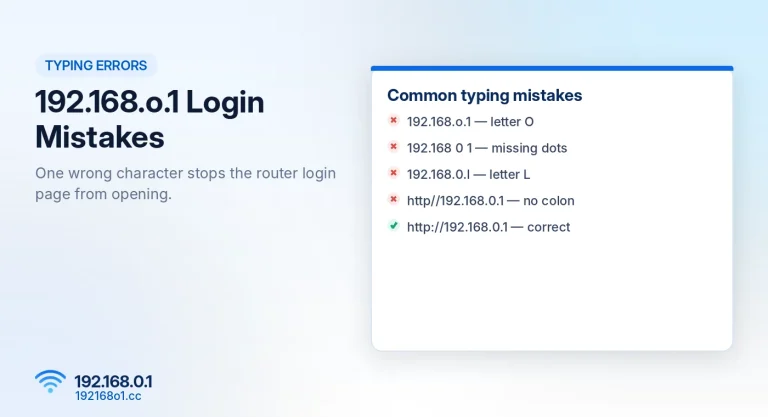
If 192.168.0.1 doesn’t load, you may simply be using the wrong IP address. Our 192.168.0.1 Not Working guide can help you diagnose the access problem.
Confusing WiFi Access With Router Administration
Being connected to WiFi doesn’t prove that you know the administration password.
Trusting Random Password Recovery Websites
Avoid websites that ask you to submit your router’s existing password, recovery codes, or other sensitive credentials. Use the device’s own management interface and authorized recovery options.
How to Avoid Forgetting Your Router Password Again
Once you’ve regained access, take a few minutes to make future recovery easier.
Save the new credentials securely and record the router model, management address, and any supported recovery method.
If your router offers administrator password recovery, configure it while you’re signed in. Keep the router firmware updated using releases intended for your exact model.
You should also make sure that anyone responsible for administering the network knows how to find the credentials without sharing them publicly.
Frequently Asked Questions
Can I recover my 192.168.0.1 password without resetting?
Possibly. Check saved passwords, supported recovery features, and previously linked administrator accounts. Some routers provide no recovery option once the admin password is lost.
Is the default password for 192.168.0.1 admin?
Not universally. Defaults vary by model, and previously configured routers may use custom passwords.
Can I recover my router password using a phone?
Yes, if your browser, password manager, or router’s recovery feature supports the process.
Does a factory reset erase my internet settings?
It can. Some routers need internet-provider configuration again after resetting.
Why does my WiFi password work but the admin password fail?
The wireless and administration passwords may be different.
Can I change the router password if I’m still logged in?
Usually yes. Look for the Administration, System, or Account Settings section, although your router may require the current password.
Will restarting the router recover my password?
No. A normal restart generally preserves the existing administrator password.
Conclusion
Forgetting your 192.168.0.1 router password doesn’t automatically mean you must erase your network configuration.
First, confirm the correct router address. Then check saved credentials, manufacturer-specific recovery features, and any authorized account recovery methods.
If your router has no usable recovery option, a factory reset may be necessary. Prepare for that step carefully, especially when your internet connection requires custom settings.
Once you’ve regained access, create a strong admin password and save it securely so you don’t have to repeat the recovery process. For the complete login walkthrough, return to our 192.168.0.1 router admin login guide.