How to Access 192.168.0.1 on Android and iPhone
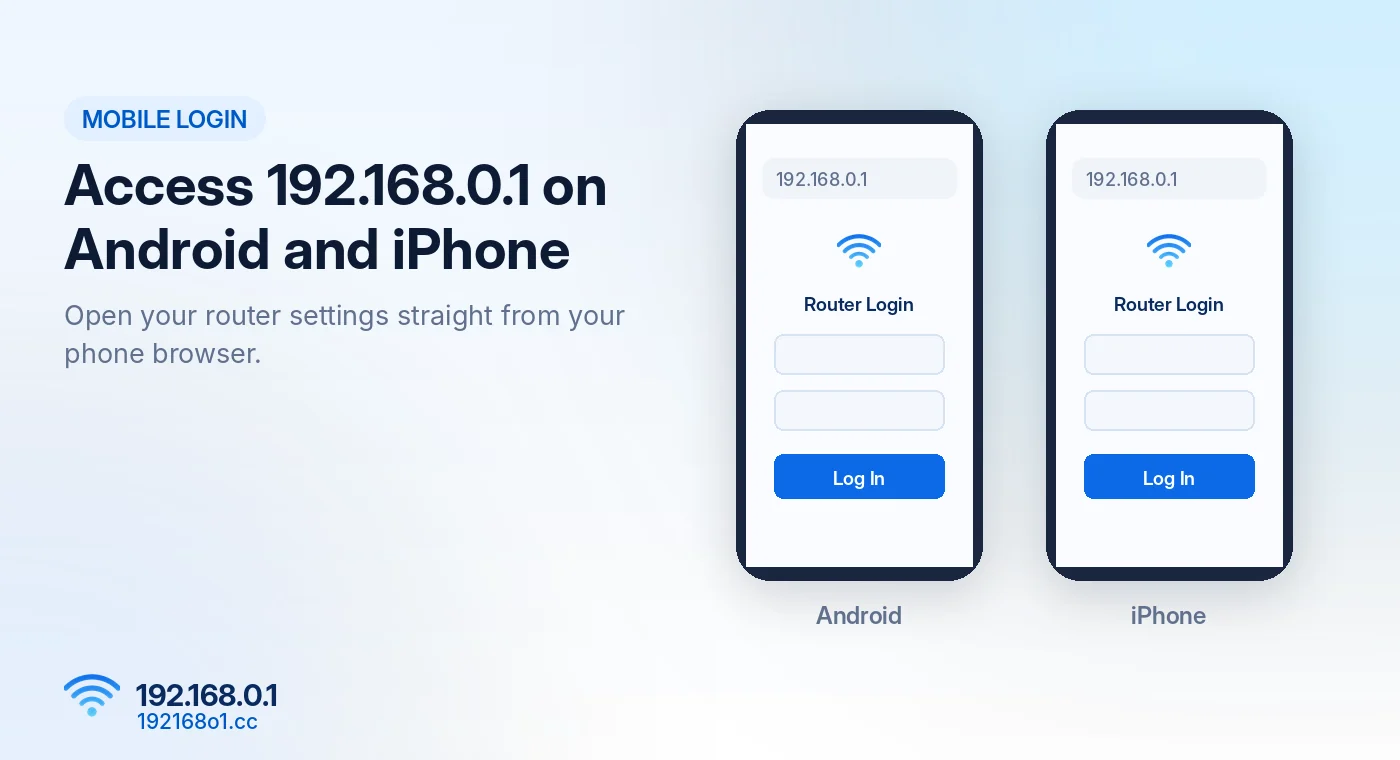
You don’t need a computer to open your router’s administration page. Most routers with a browser-based management interface can also be accessed from an Android phone or iPhone.
If your router uses 192.168.0.1, you can often change WiFi settings, view connected devices, and manage passwords directly from your mobile browser.
There are a few details worth checking before you start.
What You Need for Mobile Router Login
Your phone should be connected to the WiFi network of the router you want to manage.
You also need the router’s correct IP address and its administration password.
A mobile internet connection alone generally won’t provide access to a private local address such as 192.168.0.1.
How to Login to 192.168.0.1 on Android
Step 1: Connect to Router WiFi
Open Settings and select WiFi. Connect to the correct network.
If your phone warns that the WiFi has no internet connection, you may still be able to access its local management page. Make sure the phone remains connected to that WiFi network.
Step 2: Open Chrome
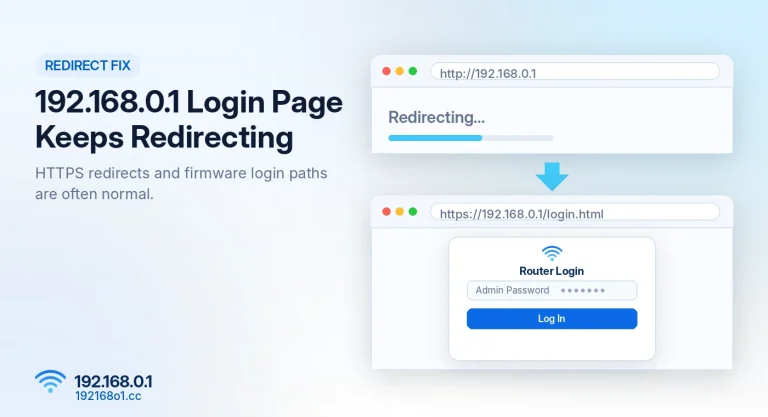
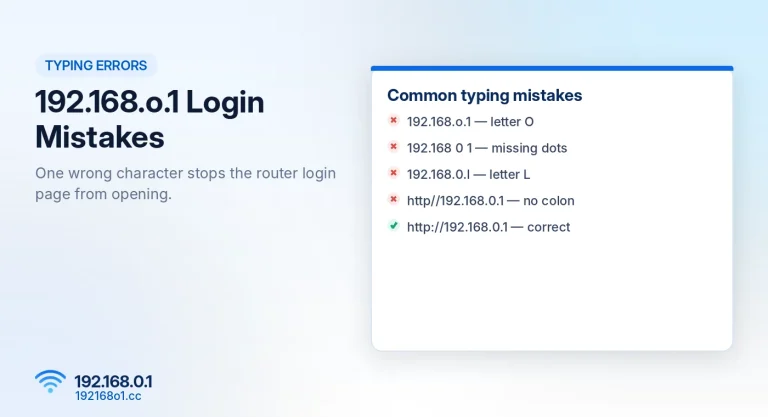
Launch Chrome or another browser and enter http://192.168.0.1
Use the address bar rather than entering the IP as a Google search query.
Step 3: Enter Login Details
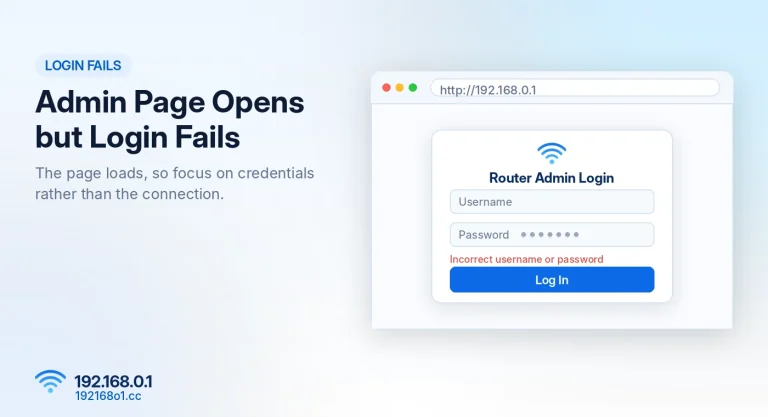
When the administration screen appears, enter the required credentials.
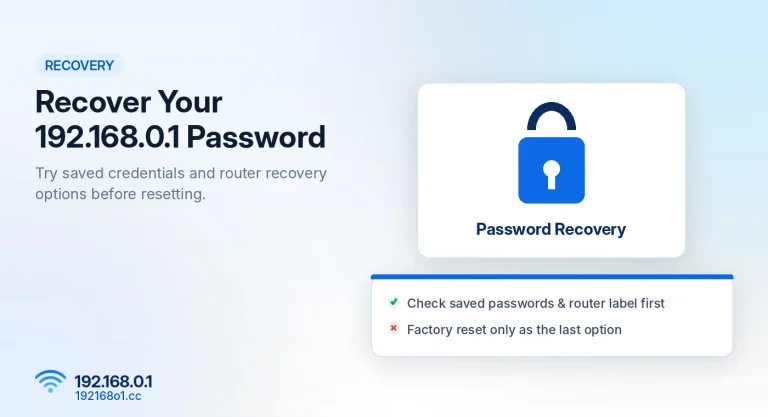
Some routers request a username and password. Others show only an administrator password field. Our 192.168.0.1 username and password guide explains where to find them.
Step 4: Access Router Settings
After logging in, find the section you want to manage. Common options include WiFi settings, connected devices, and system configuration.
Avoid changing unfamiliar settings.
How to Login to 192.168.0.1 on iPhone
Open WiFi Settings
Go to Settings > Wi-Fi and connect to your router’s wireless network.
Open Safari
Enter http://192.168.0.1 in Safari’s address bar. If your router supports this address, its management interface should open.
Enter Your Admin Password
Use the password configured for the router administration page. The WiFi password used to join the network might not be the same.
192.168.0.1 Not Opening on Your Phone?
Turn Off Mobile Data Temporarily
Some phones change their preferred connection when WiFi has limited internet access. Temporarily disabling mobile data can help you test the local router connection.
Check VPN Settings
An active VPN can sometimes interfere with private local addresses. Temporarily disconnect it while testing your router dashboard.
Find the Correct Router IP
On an iPhone, open Wi-Fi settings and tap the information icon next to the connected network. The Router field normally displays the gateway.
On Android, find the active WiFi network details and look for Gateway or Router, where available.
For full instructions, see How to Find Your Router IP Address. If nothing loads at all, read 192.168.0.1 Not Working.
Try Another Browser
If the login page appears blank or buttons don’t work, try another browser.
Certain older router interfaces may not display properly on small screens. If a desktop view is available, it may help with menus designed for computers.
Is Mobile Login Safe?
Accessing your router from your own connected phone is a normal management method.
However, avoid saving administration credentials on a shared phone. Use a strong admin password, keep your phone updated, and sign out when you’re finished.
Frequently Asked Questions
Can I open 192.168.0.1 without a computer?
Yes. An Android phone or iPhone can usually access a supported router management page.
Can I use mobile data to open 192.168.0.1?
Normally no. This private address is intended for local network access.
Why does Safari show an error?
You may be using the wrong gateway, disconnected from the router, or encountering a router web-interface problem.
Can I change my WiFi password from my phone?
Yes, if your router provides the setting through its web interface or supported management app. Follow our WiFi name and password change guide.
Conclusion
Mobile router login is convenient when you want to check settings without opening a computer.
Connect to your router’s WiFi, enter the correct management address, and use its admin credentials. If 192.168.0.1 doesn’t open, check the gateway and network connection before attempting more disruptive fixes. The full desktop walkthrough is on our 192.168.0.1 router admin login page.