192.168.0.1 Admin Page Opens but Login Fails – What to Check
If 192.168.0.1 opens the router login page but refuses your username or password, the problem is different from a router connection error.
Your browser has already reached a management interface. The issue is more likely related to authentication, the wrong credentials, or a login restriction.
Before resetting your router, check the following details.
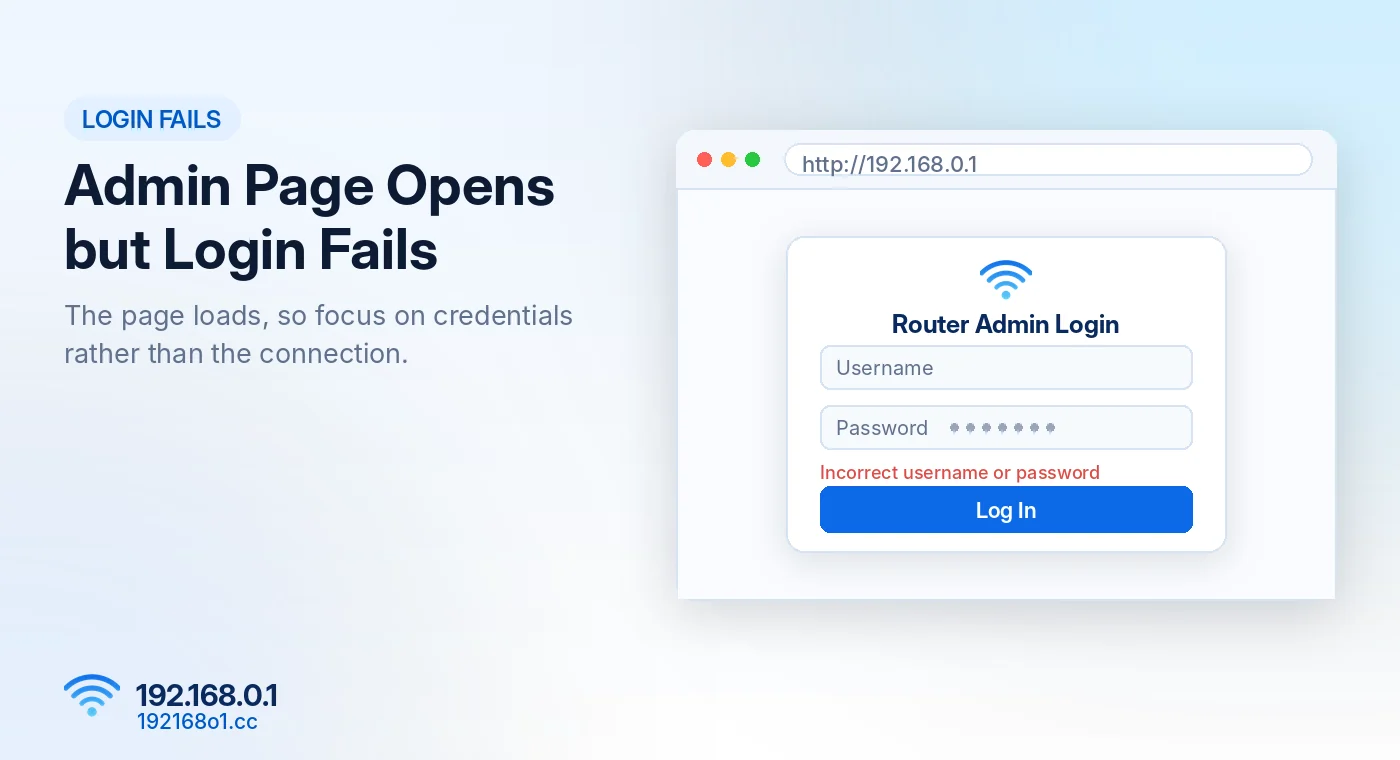
Why Your Router Admin Login Might Fail
A login screen can reject access when the username is incorrect, the administrator password has changed, or the router temporarily limits further attempts.
Sometimes the page belongs to a different device than expected.
Knowing which problem you’re dealing with helps you choose the right next step.
Check the Router Username and Password
Are You Using an Old Default Password?
Some older routers used standard factory credentials. However, many newer routers require an admin password created during initial setup.
If your router has already been configured, the default credentials may no longer apply.
Is Your Password Case-Sensitive?
Check uppercase and lowercase letters carefully. A small typing mistake can cause authentication to fail.
Also check whether your keyboard is using the expected language or layout.
Are You Entering the WiFi Password?
The WiFi password and admin password are separate credentials on many routers.
Being able to connect to WiFi does not mean the same password will open the router dashboard.
For more information, visit 192.168.0.1 Username and Password.
Check Whether the Router Has a Temporary Lockout
Some router interfaces temporarily restrict login after multiple unsuccessful attempts.
Look for an Error Message
The screen may display:
- Incorrect password
- Invalid username
- Too many attempts
- Account temporarily locked
- Authentication failed
The exact wording depends on the device.
Avoid Repeated Password Attempts
If the router indicates a temporary restriction, follow its documented recovery or lockout procedure. Continuously trying new combinations may extend the problem.
Confirm You’re Logging Into the Correct Device
A home network can contain a modem-router, separate wireless router, and other networking equipment.
If you open the wrong device’s administration page, your expected credentials won’t work.
Check the Login Screen
Look for the manufacturer name or interface design. Compare it with the router you intend to manage.
Brand specific steps are in our Tenda router login guide and TP-Link router login guide.
Verify the Management Address
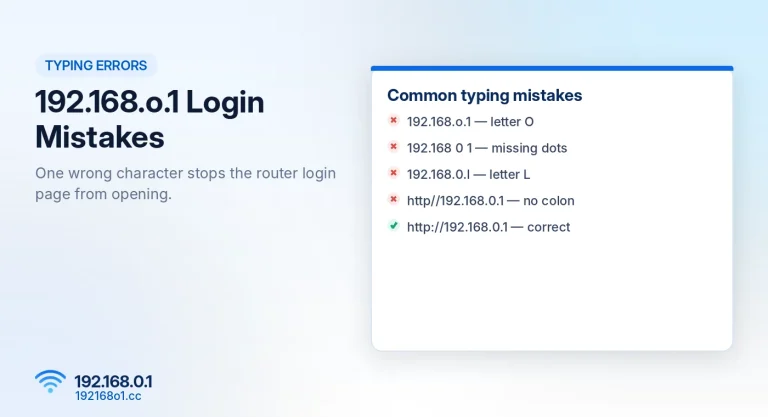
Use the router’s documented address. If you’re unsure, find the gateway or check the device label.
Start with our 192.168.0.1 homepage for standard login instructions, or see how to find your router IP address.
Test Another Browser
Sometimes a login form doesn’t work correctly because of old cookies or browser compatibility issues.
Try a private window or another browser. You can also test the management page from another authorized device.
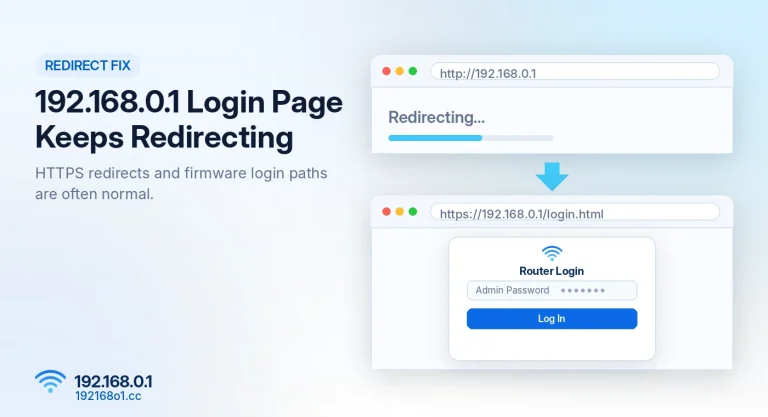
If the same password fails everywhere, browser troubleshooting is less likely to help. If the page keeps bouncing between addresses, read our guide on the login page redirecting.
Forgot Your Admin Password?
Check whether the router offers password recovery through previously configured email, security questions, or an associated management account.
Some models provide these features, while others require a factory reset when the password is lost.
Read our 192.168.0.1 Password Recovery Guide before performing a reset.
What Should You Avoid?
Don’t enter admin credentials into a random public website claiming to unlock your router. Your actual router administration form should be the interface for the device you’re authorized to manage.
Avoid repeated password guessing and unnecessary factory resets.
Frequently Asked Questions
Why does 192.168.0.1 open but reject my password?
Your password may be incorrect, changed, or intended for WiFi rather than router administration.
Can an admin account be temporarily locked?
Some routers limit repeated login attempts. Follow the device’s documented instructions.
Will clearing browser cache recover my password?
No. It may resolve browser session problems but won’t recover forgotten administrator credentials.
Is factory reset the only solution?
Not always. Some routers support recovery features that were configured in advance. See How to Reset Your Router Safely.
Conclusion
When the 192.168.0.1 admin page opens but login fails, focus on the credentials and authentication process rather than the network connection.
Check which device you’re accessing, verify the password type, and use supported recovery options where available.
A factory reset should remain the last option because it can remove important network settings.